When meeting room tech becomes an IT problem

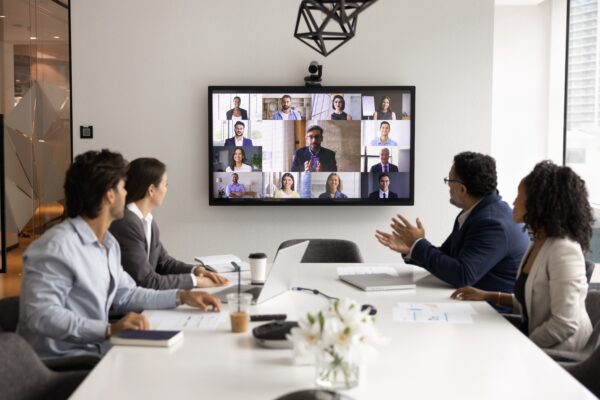
When I was an IT director, few things stressed out my users more than a meeting in which the conference room technology didn’t perform as expected. Someone from my team would race into the room to get things back on track, finding a group of sour faces seated at the table. Even when the fix was easy, there would still be discontent. The meeting had started late and everyone’s day was a little more compressed.
According to Flowtrace’s State of Meetings Report 2025, half of all meetings get underway later than scheduled. If you’ve ever watched a conference room full of people wait while someone digs through a drawer of adapters looking for the one that fits their laptop, you know where some of those minutes go. You try USB-C to HDMI, then Mini DisplayPort, and then a guest shows up with a Surface and nothing in the drawer fits.
Wireless display vendors have been promising to solve these frustrating problems for years, and they’ve made headway. Barco announced new ClickShare Hub bundles certified for Microsoft Teams during CES week, and they weren’t alone. EZCast and other vendors had similar solutions on view.
But for IT pros like you, potential can still collide with reality. Your users have been AirPlaying to their living room TVs for years. They expect the same effortless experience at work, and when they don’t get it, you’re the one fielding the call.
Consumer display solutions weren’t built for business settings
AirPlay, Miracast, and Google Cast work beautifully at home because home networks are simple. There’s one ecosystem, one network, no guest access to manage, and no compliance concerns.
What breaks when you bring them to work? AirPlay needs devices on the same network, which gets complicated when your guest presenter is on visitor WiFi. Miracast uses peer-to-peer connections that some corporate firewalls block by default. Google Cast can consume up to 25 Mbps per stream, and if you’ve got multiple conference rooms active simultaneously, that adds up fast.
Some schools learned this the hard way when they tried deploying Chromecast as a cheap wireless solution and overwhelmed their network switches. What works fine in a single living room doesn’t automatically scale to a building full of conference rooms.
Network issues are only half the problem. Your CFO’s MacBook, your sales team’s Windows laptops, and the Android phone a contractor pulls out to share a dashboard all need to work with whatever you deploy.
Match your meeting room solution to your actual device mix
Most offices run primarily on Windows, and Microsoft’s Wireless Display Adapter handles those laptops plus Android devices via Miracast. That leaves Apple devices out of the picture, which matters if executives or guests show up with MacBooks. If your office happens to run mostly Macs, an Apple TV is simple and reliable, but then Windows users are the ones reaching for cables. Either way, single-platform solutions just move the problem around.
Mid-range offerings in the $500 to $900 range start to address this mixed-device reality. Yealink RoomCast, BenQ InstaShow, ScreenBeam FLEX, and similar products support multiple protocols, typically AirPlay, Miracast, and Google Cast, so most devices can natively connect. They offer PIN authentication and some provide basic central management. For a company with two or three conference rooms, this tier often hits the sweet spot between capability and cost.
Enterprise solutions at $1,000 and up, like Barco ClickShare and Airtame, add features that matter at scale, including fleet management dashboards, usage analytics, tighter security certifications, and dedicated support. Whether that premium is worth it depends on how many rooms you’re managing and how much you value reducing administrative overhead.
Consider how guests will join hybrid meetings
Getting your own team wirelessly connected to room cameras and microphones is one thing. The harder part is whether a guest can walk in, connect, and join a hybrid meeting without reconfiguring anything. If your rooms run Teams Rooms or Zoom Rooms, that’s worth asking vendors about. If the answer is complicated, you might be signing up for a support burden.
Some solutions actually integrate wireless presentation and video conferencing rather than treating them as separate problems. ClickShare Conference and ScreenBeam’s BYOM capabilities let presenters wirelessly connect to room cameras and microphones, not just the display. Others still assume you’ll handle video conferencing with dedicated room hardware and only use wireless for screen sharing. You’ll want to know which kind you’re buying before you sign.
Set security requirements users will actually follow
Security advice for wireless display might assume you have resources to spare. You’ll hear recommendations to put devices on a separate VLAN, implement certificate-based authentication, and monitor traffic for anomalies.
If you’ve got dedicated network engineers, that’s all reasonable guidance. If you’re a one-person IT shop managing a single conference room, it could be a recipe for never finishing the deployment. And if the deployment stalls, employees will find workarounds, plugging in personal cables they brought from home, which gives you neither the convenience benefits nor the security advantages you were going for.
Someone in an adjacent office or parking lot could cast to your display if you skip PIN authentication, which sounds paranoid until you remember that Miracast’s peer-to-peer discovery doesn’t necessarily stop at building walls. This takes minutes to configure and users quickly adapt.
Firmware is easier to overlook, but these devices sit on your network and some have had real vulnerabilities. Barco issued patches for ClickShare security flaws in recent years, and less prominent vendors don’t always have the same patching cadence. If a solution offers centralized update management, that’s one less thing to manually track. If it doesn’t, add firmware checks to your quarterly maintenance list. Conference room devices become forgotten elements of your attack surface faster than you’d expect.
If you do have the resources for network isolation, it’s genuinely good practice. Just keep in mind that aggressive security measures users consistently bypass are worse than slightly less militant measures that actually get followed.
Document the guest presenter workflow before you need it
If your receptionist or meeting organizers don’t know how to get a visitor connected, the burden falls back on you—usually ten minutes before an important client meeting. A laminated quick-reference card in the conference room, or a QR code linking to a one-page guide, saves more support time than any feature comparison spreadsheet. Document the guest presenter process, share it with the people who schedule conference rooms, and test it with someone who’s never used the system before.
An HDMI cable and a handful of common adapters (USB-C, Mini DisplayPort) in a drawer isn’t admitting defeat. It’s operational pragmatism. When wireless fails during a board presentation, you’d rather be reaching for a backup cable than rebooting the base unit and hoping for the best.
Pick something that fits and standardize it
Wireless display technology is maturing, and the gap between consumer simplicity and enterprise requirements is finally starting to narrow. The IT shops that handle this issue well won’t be the ones who found the perfect product. They’ll be the ones who picked something that fits their actual device mix and budget, then made it the same in every room so users don’t face a different interface in every conference space.
Get the deployment right, and you’ll field fewer panicked calls before big meetings. Your users will stop assuming the conference room setup is hit-or-miss before they even walk in. That’s worth the upfront effort.